%20Figma%20to%20Webflow_%20How%20Agencies%20Turn%20Designs%20into%20Production%20Sites.png)
You've got designs in Figma. There's an official plugin, a companion app, Webflow University tutorials, and enough YouTube walkthroughs to fill a weekend. On paper, Figma to Webflow is a solved problem.
Then you actually try it. The plugin spits out classes named "Button 42" and "Section Wrapper 228." Layouts that looked clean in Figma fall apart on mobile. Fonts revert. Interactions don't transfer.
One Product Hunt reviewer put it plainly: "there is still a lot of manual work to refine a design in Webflow."
This is the gap nobody warns you about. Unlike popular belief, this gap exists not between Figma and Webflow, but between transferred and production-ready.
There are three ways to close that gap: the Figma to Webflow plugin, manual development, and hiring a Webflow agency. Each one is the right answer for a different situation. This guide covers how all three actually work, what the plugin does and doesn't do, how to prepare your file before touching any of it, and how to know which route is yours, so you're not six hours into cleanup when you realize you should have made a different call at the start.
Figma to Webflow: the fastest ways to convert your designs
Getting from a Figma file to a live Webflow site comes down to three routes. Which one makes sense depends on how clean your file is, how complex the build is, and how much of your own time is actually on the table.
Route 1: The Figma to Webflow plugin
Webflow's official plugin syncs directly from your Figma file, translating Auto Layout into flexbox, layer names into classes, components into Webflow components, and design tokens into Webflow variables.
When your file is clean and well-structured, it compresses the setup phase considerably and keeps your design system in sync with the live site as it evolves. When it's not, you'll spend more time untangling what the plugin generated than you would have building from scratch.
Either way, the output is a structural starting point; interactions, responsiveness, and anything requiring judgment still get built manually.
Best for: Teams with organized, component-driven Figma files who want to accelerate simpler builds or maintain ongoing design system sync.
Route 2: Manual development
A developer treats your Figma file as a reference and rebuilds the site in Webflow by hand, writing deliberate class structures, making considered responsiveness decisions, and building components that scale without accumulating technical debt. The timeline up front is longer. The result is cleaner, more maintainable, and doesn't inherit any structural assumptions the plugin made on your behalf.
Best for: Complex or unconventional designs, sites expected to grow significantly post-launch, and builds where the marketing team needs to own and edit content without developer dependency.
Route 3: A Figma to Webflow agency
Hiring a Webflow agency is not only a faster version of manual development, it's a different scope. The build itself is one part; the rest is the layer most teams don't anticipate until they're on the other side of launch: how the CMS is structured for the people who'll actually use it, which form routes to which CRM field, how analytics events fire, what gets pressure-tested before go-live.
A Webflow development partner that does this regularly delivers a site your marketing team can own instead of one that requires a follow-up retainer every time something needs changing.
Best for: Marketing teams with firm launch dates, builds involving CMS or third-party integrations, or any situation where shipping something reliable matters more than the team learning to build it themselves.
When to use the Figma to Webflow plugin vs manual development
Before you pick a route, be honest about your situation. The wrong choice could lead to a lot of work you'll redo.
Use the Figma to Webflow plugin if you can check most of these:
- Auto Layout is applied consistently throughout the file, not just in some sections
- Your designer built the file knowing it would go to Webflow
- Layer names are clean and descriptive, not "Frame 47" or "Group 12"
- The build is a landing page, a small site, or a prototype, not a 20-page CMS build
- You have someone in-house who knows Webflow well enough to clean up what the plugin generates
- No CRM integrations, form routing, or custom analytics need to be in place at launch
Choose manual development if most of these are true:
- The design is complex, custom, or unconventional; layouts the plugin won't handle cleanly
- The file was built for sign-off; it looks great in Figma but wasn't structured for Webflow
- You have an experienced Webflow developer available, either in-house or freelance
- The site is meant to grow significantly after launch: new pages, templates, CMS collections
- Your marketing team needs to edit content post-launch without touching the Webflow designer
- You have the timeline to do it right rather than fast
Bring in a Figma to Webflow agency if this sounds familiar:
- You have a launch date that isn't moving
- The site needs CMS architecture, CRM connections, or analytics configuration on day one
- There's no Webflow expertise in-house to own the build or the cleanup
- This site will be used to generate pipeline; it's not a prototype or internal tool
- The design is still evolving and decisions are still being made
- Post-launch, your marketing team needs to run this independently without developer dependency
If you checked four or more in any one column, that's your route. If you're split across two, that's also useful information, it usually means a hybrid approach, or that you need to have a conversation with a Webflow development partner conversation sooner than you think.
How to prepare your Figma file before importing
Most Figma files aren't ready for Webflow out of the box, even well-designed ones. What follows is the prep work that separates a smooth sync from three days of cleanup.
1. Apply Auto Layout throughout
Auto Layout is a HARD REQUIREMENT, not a suggestion. The plugin will only sync layers that have it applied. If a frame doesn't have Auto Layout, it won't transfer.
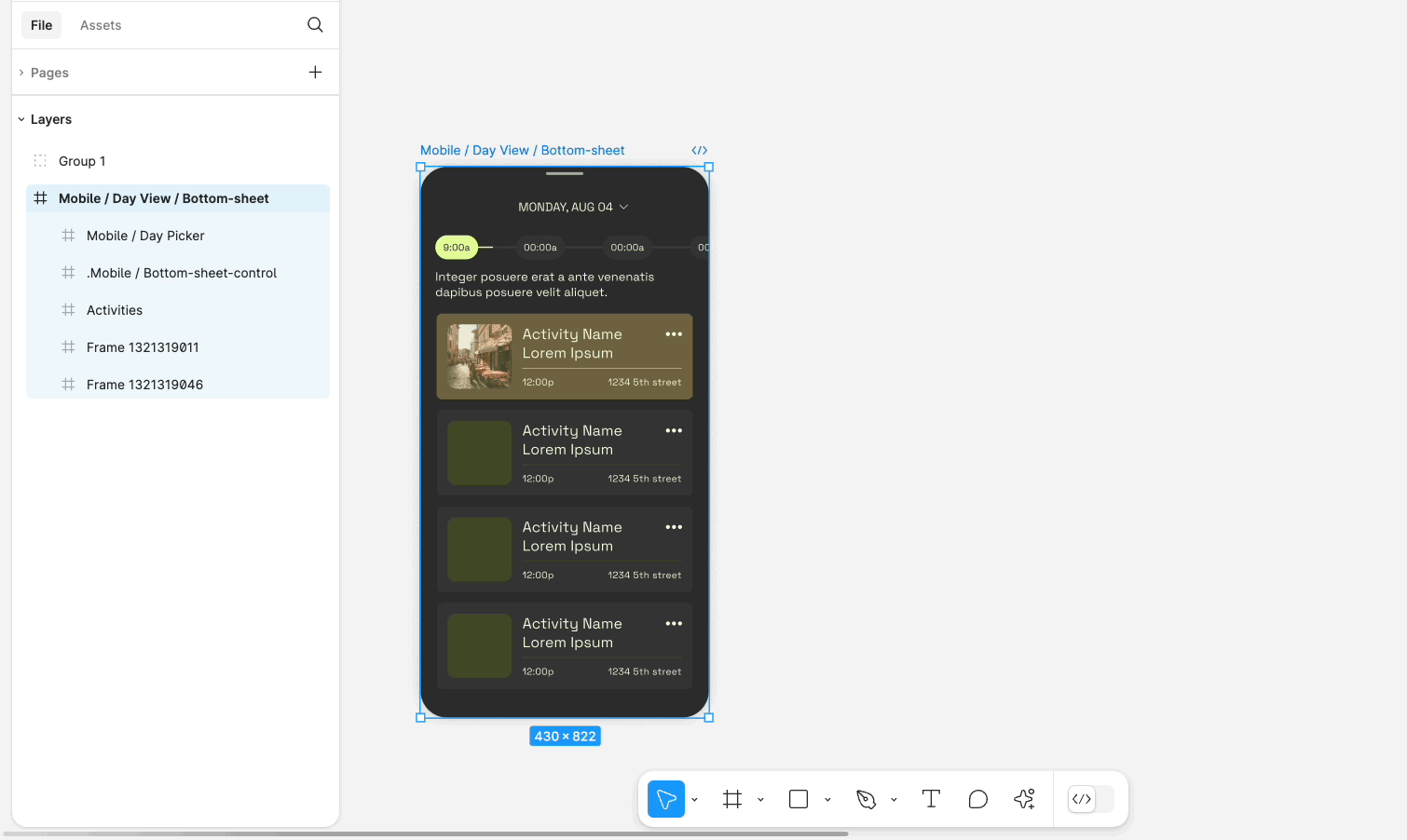
The good news: you don't have to redo the entire file manually. Figma's "Suggest auto layout" feature analyzes your design and adds Auto Layout frames across the whole file at once.
Right-click the frame > More layout options > Suggest auto layout or use the Actions menu
2. Name your layers properly, they become Webflow classes
Every Figma layer name becomes a CSS class when it syncs. "Frame 47" and "Group 12" shouldn’t become the class names your team has to work with in Webflow. Clean them up before syncing, not after.
A few naming conventions worth following:
- use descriptive, dash-separated names ("hero-card" not "Card 3")
- stay consistent with casing across similar components
- avoid spaces (they create awkward class name formatting in Webflow)
3. Build with components and variables
Reusable Figma components sync as Webflow components, not just as repeated elements. True components in Webflow mean your team edits once and it updates everywhere. If your Figma file uses the same button in 12 places as a copied frame rather than a component, you'll have 12 independent elements in Webflow that each need to be updated separately.
The same logic applies to variables. Figma color, spacing, and typography variables sync to Webflow variables, which become the foundation of your design system. One collection and one mode at a time—plan which you're syncing first before you hit the button.
4. Upload custom fonts to Webflow BEFORE you sync
This one catches people every time. If your Figma file uses custom fonts that aren't in Webflow's default Google Fonts library, they have to be uploaded to your Webflow site before the sync. Not during, not after, BEFORE. If you sync first, the fonts get lost in the transfer and revert to a fallback, meaning you'll need to re-upload and re-sync.
Go to Site settings > Fonts tab > Custom fonts and upload the files there.
WOFF2 is the recommended format. Reopen the Designer after uploading to make the fonts available before you run the plugin.
5. Flag anything complex before syncing
A few things the plugin handles poorly. It's better to know upfront than discover it mid-build:
- Advanced blurs and blend modes often don't translate cleanly. Simplify them in Figma or plan to rebuild them natively in Webflow.
- Highly nested components with variants aren't supported. Separate Figma frames create separate Webflow components, so restructure accordingly.
- Unconventional vector work should be exported as SVG assets rather than expecting the plugin to handle it.
These are decisions that are easier to make in Figma than to untangle in Webflow.
The agency-ready layer: what the plugin prep checklist misses
If you're handing this file to a Figma to Webflow agency rather than running the plugin yourself, the prep brief gets wider. The technical file requirements above are table stakes. What agencies actually need before kickoff—and what cuts the most back-and-forth—goes beyond the file itself:
- CMS scope: Which sections will have dynamic content? What fields does each collection need? This shapes how components are built, not just how they look.
- Integration touchpoints: What do your forms connect to? Which CRM fields matter? Are there any analytics events that need to fire on specific interactions? If you don't define this upfront, it gets defined during the build — which usually means rework.
- Editability requirements: Which sections does your marketing team need to update post-launch, without touching the Webflow designer? Components built for developer use and components built for marketer use are structured differently.
A Figma file that answers these questions, even in an attached brief or a shared doc, moves from design handoff to an actual build brief. It's the difference between a kickoff call that starts with clarification questions and one that starts with decisions.
If you're working with a Webflow agency like LBT, this is what the kickoff call is actually for. But the closer your file gets to answering these questions before that conversation, the faster everything after it moves.
How to convert Figma designs to webflow (step-by-step) using the official Figma to Webflow Plugin
The plugin runs in three tabs, Layers, Variables, and Styles, and each handles a different part of your design system. Here's exactly how to use it.
Step 1: Install and authorize the plugin
You'll set this up once. After that, the connection persists across sessions.
- Sign into both Figma and Webflow
- Go to the Figma to Webflow plugin page on Figma Community and click Open in…
- Select a file from Recent files or click New file. Figma opens with the plugin modal active
- Click Run at the bottom of the modal
- Click Next > Connect
- Select the Workspaces or sites you want to authorize, then click Authorize app
- Close that browser tab and return to Figma
- Click Get started in the modal
- Select the Webflow site you're building from the dropdown at the top
⚠️ The plugin only works in Chrome or the Figma Desktop app. It won't run in Safari.
Step 2: Understand the three-tab structure
The rebuilt plugin is organized into three tabs and each handles a different part of your design system:
- Layers: exports Figma frames and components to Webflow elements and components
- Variables: exports design tokens (color, spacing, type) to Webflow variables
- Styles: exports text and effect styles to Webflow classes
Work through these in order—variables and styles first, then layers—so the design system is in place before components land on the canvas.
Step 3: Sync layers (the full workflow)
This is the main workflow for syncing entire frames or components as actual Webflow components — not just pasted elements.
- Open the Layers tab in the plugin
- Select one or more frames or components in your Figma file
- Click Continue
- Click Sync to Webflow
- Switch to Webflow and open the Figma to Webflow app from the Apps panel
- Click the most recent sync from Figma
- Review which components, elements, and variables are ready to import
- Click Import selected items
One thing to be aware of: only one variable collection and mode can be synced at a time. If you have multiple collections, plan the order before you start.
Step 4: Or use the copy-paste shortcut
For a single section you want to drop in quickly, there's a faster route that skips the companion app entirely:
- Open the Layers tab
- Select a frame or layer
- Click Continue
- Click Copy
- Switch to Webflow and paste directly onto the canvas
The trade-off is worth knowing upfront: via copy-paste, components land in Webflow as plain elements — not true Webflow components. That means no component-level editing, no propagation of changes. If reusability matters for what you're pasting, use the full sync workflow instead.
When you paste, you also have three options for handling any class name conflicts with existing styles on the site:
- Cmd/Ctrl + V: creates a new class ("Button 2")
- Cmd/Ctrl + Shift + V: reuses the existing class and keeps its current styling
- Cmd/Ctrl + Option/Alt + V: updates the existing class with the Figma styles
Step 5: Sync variables and styles
Variables and styles follow the same pattern as layers, sync from the relevant tab in Figma, then import via the companion app in Webflow.
- For variables: open the Variables tab, select a collection and mode, click Sync to Webflow, then import from the app. You can adjust units (px, em, or rem) in the plugin settings before syncing if your design system uses a specific scale.
- For styles: open the Styles tab, select the text or effect styles you want, click Sync to Webflow, then import from the app. Styles become Webflow classes. You can add a class prefix in the plugin settings to distinguish Figma-sourced classes from ones built natively in Webflow.
What you have at the end of this process is a structural foundation in Webflow, your design system mapped across, your components in place. What comes next is where the actual build begins: responsiveness, interactions, CMS bindings, and everything that needs a human decision rather than a sync.
What the plugin transfers and where things go wrong
The plugin reliably moves: Auto Layout to Webflow flexbox, layer names to classes, Figma variables to Webflow variables (one collection and mode at a time), components, images, vectors, and text and effect styles. What it doesn't move: interactions, animations, variants, advanced blurs, and blend modes. Those get built or fixed in Webflow manually.
That last category is where most builds hit trouble because people build on top of the output before auditing it. In fact, technical debt is the top frustration for 62% of developers, and auto-generated structure nobody's reviewed is one of the fastest ways to manufacture it. The issues below are the ones that compound most.
1. Messy class names: Classes inherit Figma layer names directly. "Frame 47" in Figma becomes "Frame 47" in Webflow. Clean up immediately after syncing, before anything gets built on top.
2. Broken responsiveness: The plugin doesn't handle breakpoints. Test every screen size after sync and manually adjust stacking, widths, and wrap behavior.
3. Fonts reverting: Custom fonts not uploaded to Webflow before syncing get lost in the transfer. Re-upload in Site settings > Fonts, then re-sync.
4. Effects not rendering: Advanced blurs, blend modes, and complex vectors don't transfer cleanly. Simplify in Figma or rebuild natively in Webflow.
5. Paste conflicts: When a Figma class already exists in Webflow: Cmd/Ctrl + V creates a new class, Cmd/Ctrl + Shift + V reuses the existing one, Cmd/Ctrl + Option/Alt + V updates it with incoming Figma styles. Know which you want before you paste. Updating affects every element using that class.
The plugin handles translation. Responsiveness, CMS structure, and how components scale for a team editing post-launch are judgment calls, and those belong to whoever's building the site. For SaaS teams where those decisions actually matter, that gap is where an experienced Webflow agency earns its keep.
repetitive translation work reliably. The judgment—how components should scale, how content gets structured for a team that'll edit it post-launch, what happens at tablet—still requires someone who knows what they're doing. For SaaS companies building sites that need to actually perform, that gap is where an experienced Webflow agency earns its keep.
When the plugin isn't enough, build it right the first time
For complex websites—anything with a real CMS, third-party integrations, or a marketing team that needs to own it post-launch—the plugin gets you a starting point, not a site.
The manual workflow exists for a reason: sequence, structure, and judgment that no sync process can replicate. Style guide before pages. CMS before integrations. QA before anyone sees it. A 0.1-second improvement in mobile load time increases conversions by 8.4%. A site that goes live slow stays slow until someone prioritizes fixing it.
This is exactly where a Webflow agency changes the equation. LBT's Webflow development process runs Kickoff → Webflow Build → Integrate & QA → Launch & Support, and the Integrate & QA stage alone covers what most DIY builds skip entirely: forms feeding the right CRM fields, analytics firing correctly, consent tooling configured, Core Web Vitals passing before launch. This is not an afterthought. It is a condition of go-live.
The result is a site your marketing team can actually run.
See it across real B2B SaaS builds, from early-stage startups to established scaleups that needed a site built to grow with them.
Frequently Asked Questions
Technically no. Practically, yes. Designing in Figma first forces layout, hierarchy, and interaction decisions before they become expensive to change inside the builder. Skipping it usually means making those decisions in Webflow — which is slower and harder to undo.
No. Interactions are built natively in Webflow after the sync. The plugin handles structure and design tokens — anything that moves gets built from scratch in Webflow's Interactions panel.
Yes. That's the point of the redesigned plugin and companion app. Once your design system is connected, you can push updates from Figma into Webflow without starting over. Useful for teams whose visual direction is still evolving post-launch.
Not without cleanup. Expect to refine class structure, test responsiveness at every breakpoint, and build all interactions manually. The plugin gets the structural foundation in place — the production-ready part still requires judgment.
Chrome and the Figma Desktop app. Not Safari.
No. Variants aren't supported. Separate Figma frames create separate Webflow components, so plan your component structure before you sync rather than after.
When the build involves CMS architecture, CRM or analytics integrations, or a marketing team that needs to own the site post-launch without developer support. Also when you have a launch date that isn't moving and can't afford the back-and-forth of cleaning up plugin output. Not every project needs an agency, but when the site is meant to generate pipeline rather than just exist, the economics tend to favor getting it built properly the first time. That's the kind of work a Webflow agency is set up to deliver.